If you’ve been using Dolphin Emulator on your PC and decided it is time to remove it, you’re in the right place. Whether you are freeing up space, troubleshooting issues, or just no longer need it, uninstalling Dolphin Emulator on Windows 11 is simple, but doing it the right way matters.
In this complete guide, I will walk you step-by-step through how to uninstall Dolphin Emulator on Windows 11, including how to remove leftover files so it’s completely gone from your system.
Let’s get started.
What Is Dolphin Emulator?
Before we jump into uninstalling it, let’s quickly understand what Dolphin Emulator is. Dolphin Emulator is a popular free program that lets you play Nintendo GameCube and Wii games on your PC. It’s widely used because it offers better graphics, improved performance, and customization options compared to the original consoles. However, like any software, there are times when you might want to uninstall it.
Why You Might Want to Uninstall Dolphin Emulator
There are several common reasons why users remove Dolphin Emulator from their Windows 11 computer:
- You no longer use the emulator
- It is taking up storage space
- You are experiencing bugs or crashes
- You want to reinstall a fresh version
- You are switching to another emulator
No matter your reason, the steps below will help you remove it completely.
Before You Uninstall: Important Things to Know
Before uninstalling Dolphin Emulator, here are a few things to keep in mind:
1. Backup Your Save Files
If you’ve played games using Dolphin, your save data may still be stored on your computer. If you uninstall without backing it up, you could lose your progress.
To keep your saves:
- Open Dolphin Emulator
- Go to the “User” folder
- Copy the “GC” and “Wii” folders to a safe location
2. Close Dolphin Completely
Make sure Dolphin is not running in the background. Check your system tray and Task Manager to confirm it’s fully closed.
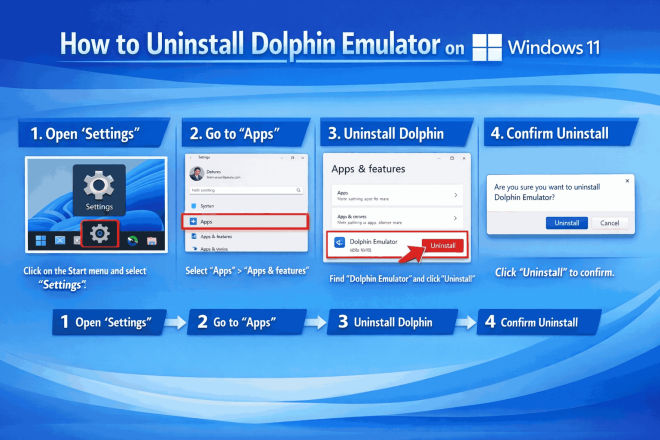
Method 1: Uninstall Dolphin Emulator Using Settings (Recommended)
This is the easiest and safest method for most users.
Step-by-Step Instructions:
- Click the Start Menu
- Select “Settings”
- Go to “Apps”
- Click on “Installed Apps”
- Scroll down and find “Dolphin Emulator.”
- Click the three dots next to it
- Select “Uninstall”
- Confirm when prompted
Windows will now remove Dolphin Emulator from your system.
Method 2: Uninstall Using Control Panel
.If you prefer the classic method, you can also uninstall Dolphin through the Control Panel.
Steps:
- Press Windows + R
- Type “control” and press Enter
- Click on “Programs”
- Select “Programs and Features”
- Find Dolphin Emulator in the list
- Right-click it and select “Uninstall”
Follow the on-screen instructions to complete the process.
Method 3: Delete Portable Version (If You Didn’t Install It)
Here is something many people don’t realize: Dolphin Emulator often comes as a portable app. That means it doesn’t always install like regular software.
If you downloaded Dolphin as a ZIP file and extracted it, uninstalling is even easier.
Steps:
- Locate the Dolphin folder on your PC
- Right-click the folder
- Select “Delete”
- Empty your Recycle Bin
That is it, no uninstall wizard needed.
How to Remove Leftover Files (Important)
Even after uninstalling Dolphin Emulator, some files may still remain on your computer. Removing these ensures a clean uninstall.
Step 1: Delete User Folder
- Press Windows + R
- Type: %appdata%
- Press Enter
- Look for a folder named “Dolphin Emulator.”
- Delete it
Step 2: Check Documents Folder
- Open File Explorer
- Go to Documents
- Look for a Dolphin folder
- Delete it if it exists
Step 3: Clear Temp Files
- Press Windows + R
- Type: %temp%
- Delete unnecessary files (optional but helpful)
How to Make Sure Dolphin Is Fully Uninstalled
After completing all the steps above, you can confirm that Dolphin Emulator has been fully removed from your system by doing a few quick checks. First, search for “Dolphin Emulator” in the Start menu. If it no longer appears, that’s a good sign it has been uninstalled. Next, review your list of installed apps to ensure it is no longer listed there. Finally, take a moment to check your AppData and Documents folders to make sure no leftover Dolphin files or folders remain. If everything is cleared out, then you’ve successfully uninstalled Dolphin Emulator from your computer.
Common Problems and Fixes
Sometimes, uninstalling software doesn’t go as planned. Here are a few quick fixes:
Problem: Dolphin Won’t Uninstall
Solution:
- Restart your PC
- Try uninstalling again
- Run as administrator
Problem: Files Keep Reappearing
Solution:
- Make sure Dolphin isn’t syncing with cloud storage
- Disable any backup apps temporarily
Problem: Leftover Files Won’t Delete
Solution:
- Use Task Manager to close related processes
- Restart your computer and try again
Should You Reinstall Dolphin Emulator?
If you removed Dolphin because of performance issues or bugs, reinstalling the latest version might fix the problem.
To reinstall:
- Download the newest version from the official Dolphin website
- Install it fresh
- Restore your saved data if needed
Final Thoughts
Uninstalling Dolphin Emulator on Windows 11 is simple, but doing it thoroughly makes a big difference. By following this guide, you not only remove the app but also clean up leftover files that could slow down your system or cause future issues. Whether you are clearing space, fixing bugs, or starting fresh, you now know exactly how to uninstall Dolphin Emulator the right way. If you ever decide to come back to it, Dolphin remains one of the best emulators available, and reinstalling is just as easy.
FAQs
1. How do I completely remove Dolphin Emulator from Windows 11?
To completely remove Dolphin Emulator, uninstall it through Settings or Control Panel and then delete leftover files from AppData and Documents.
2. Does uninstalling Dolphin Emulator delete save files?
Not always. Save files may remain unless you manually delete the Dolphin user folders. It’s best to back them up before uninstalling.
3. Why can’t I find Dolphin Emulator in Installed Apps?
You may be using a portable version. In that case, simply delete the folder where Dolphin is stored.
4. Is Dolphin Emulator safe to uninstall?
Yes, uninstalling Dolphin Emulator is completely safe and will not harm your system.
5. How do I reinstall Dolphin Emulator after uninstalling?
Download the latest version from the official website and install it like any other application.
NEXT POST: Top 10 Benefits of Box Truck Wrapping